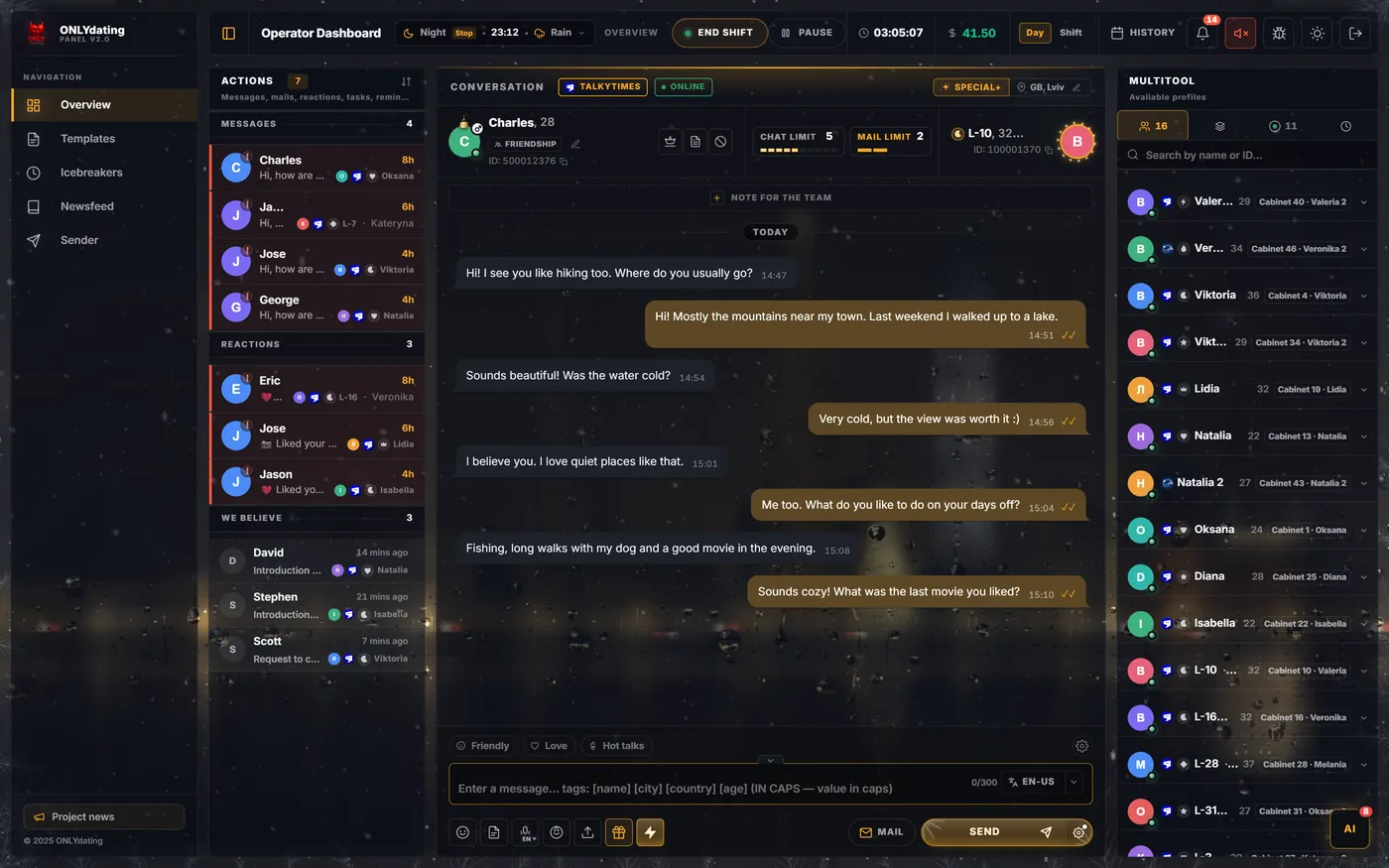
One workspace for all of an agency’s profiles: chat, mail, notifications, the AI assistant, a translator and shift tracking. Below are six everyday problems and how Dashboard solves them.
Six problems of a shift
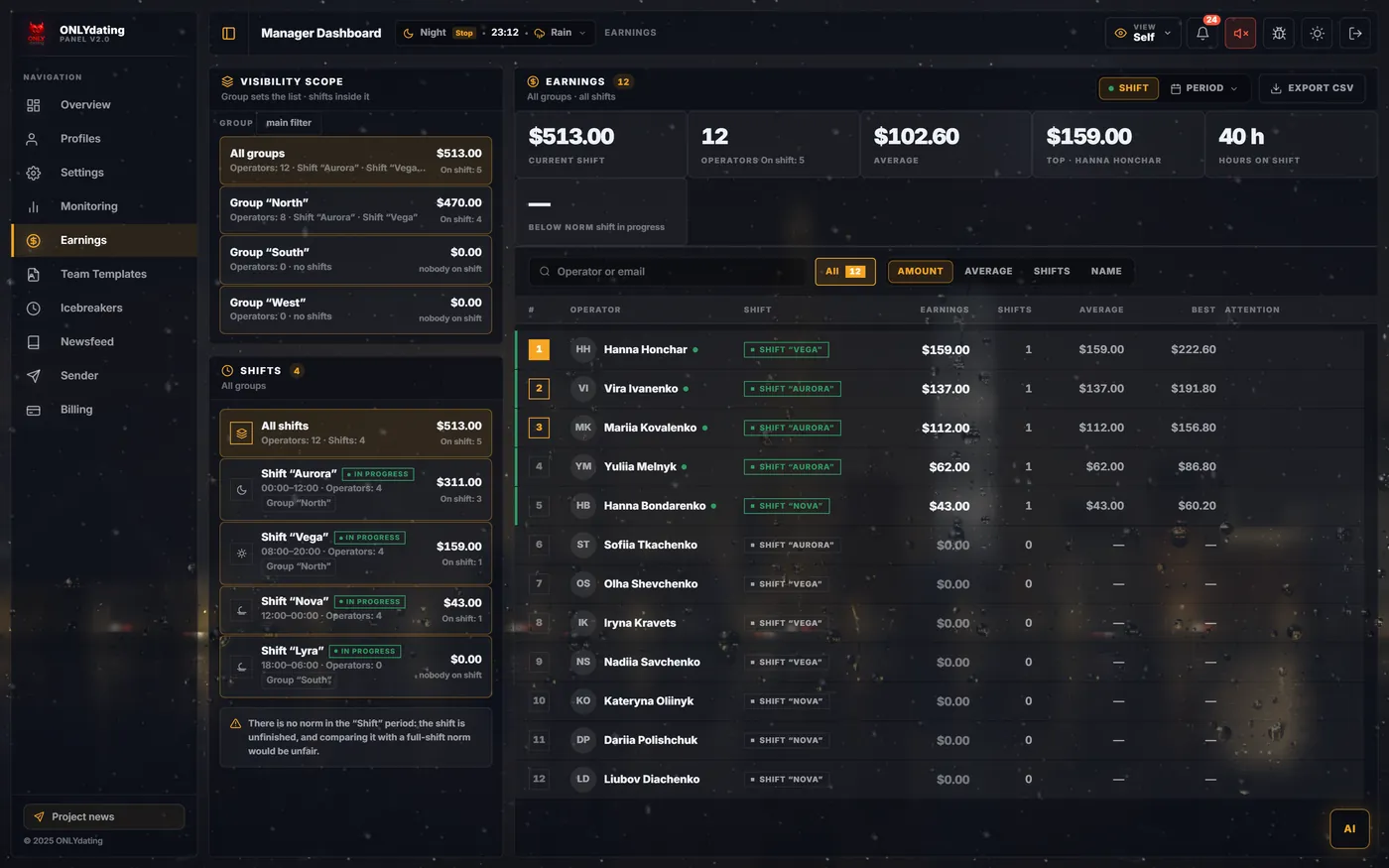
how Dashboard solves itWhen a team member asks, the AI assistant looks through the entire chat and mail history, finds what was said earlier and shows exactly where it was, so you can jump straight to that message. No need to ask again about something the chat partner has already told you. For managers, the assistant helps break down revenue and shift performance over the last 1–24 hours. The AI’s answer is a suggestion: a person decides and writes.
Team member’s question
- Mar
- Apr
- May
- Jun
- Jul
- Aug
- Sep
- Oct
AI assistant’s answer
Letter · March 14Go to message →
Searches the whole conversation · sends nothing itself · demo data
Translator in the input field
32 languages. If a message’s language can’t be detected, Dashboard shows the original rather than a guess.
UA → EN · 32 languagesChat partner tags in the text
[name], [city], [country], [age]: on sending, these are filled in with the chat partner’s name, city, country and age from their platform profile (or the name a team member gave them). No data — the tag is simply removed. Chat, letters, posts, gift notes and Sender, where a team member runs the send queue.
Hi, [name]! → Hi, Michael!Templates with names and categories
Chat or letter, your own categories, linked to the right profiles. Templates already sent to this chat partner stay out of the way, so you don’t repeat yourself. In “Team templates”, a manager can leave a comment on a template and ask for a rewrite.
Already sent to this chat partner: 3 · ShowView as team member
A manager opens a team member’s workspace with that person’s permissions — profiles, menus and templates — to help out and check the settings. This mode doesn’t show the team member’s screen, clicks or typing.
Viewing · Team member 05
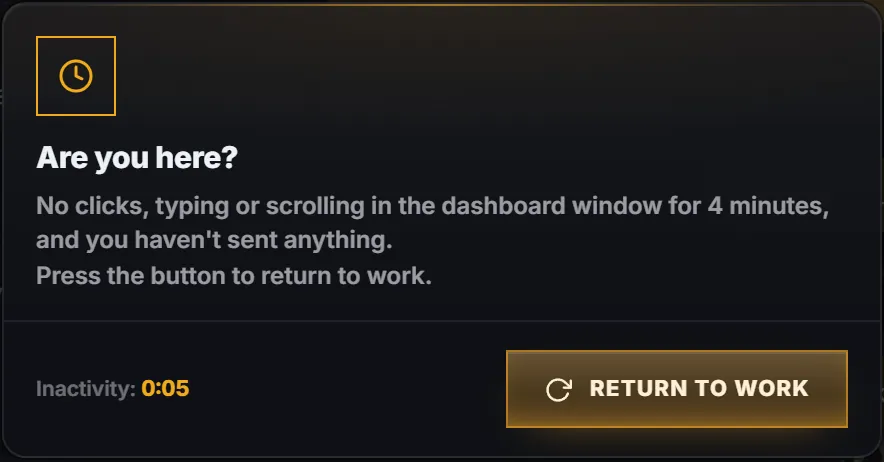
how Dashboard solves itMetrics don’t count anything outside a team member’s control against them. Response time runs from the moment a reply became possible, and replies to chat requests and letters count only during that person’s shift. After 4 minutes with no clicks, typing, scrolling or sending from their profiles, Dashboard asks: “Are you here?”
- 10:02:14Chat partner liked a photolimit 0 — can’t reply
- 10:41:30Platform granted a limitclock starts
- 10:42:08Team member repliedon time
chat partner waited39:54
team member’s metric00:38
No “false red zone” in team member metrics
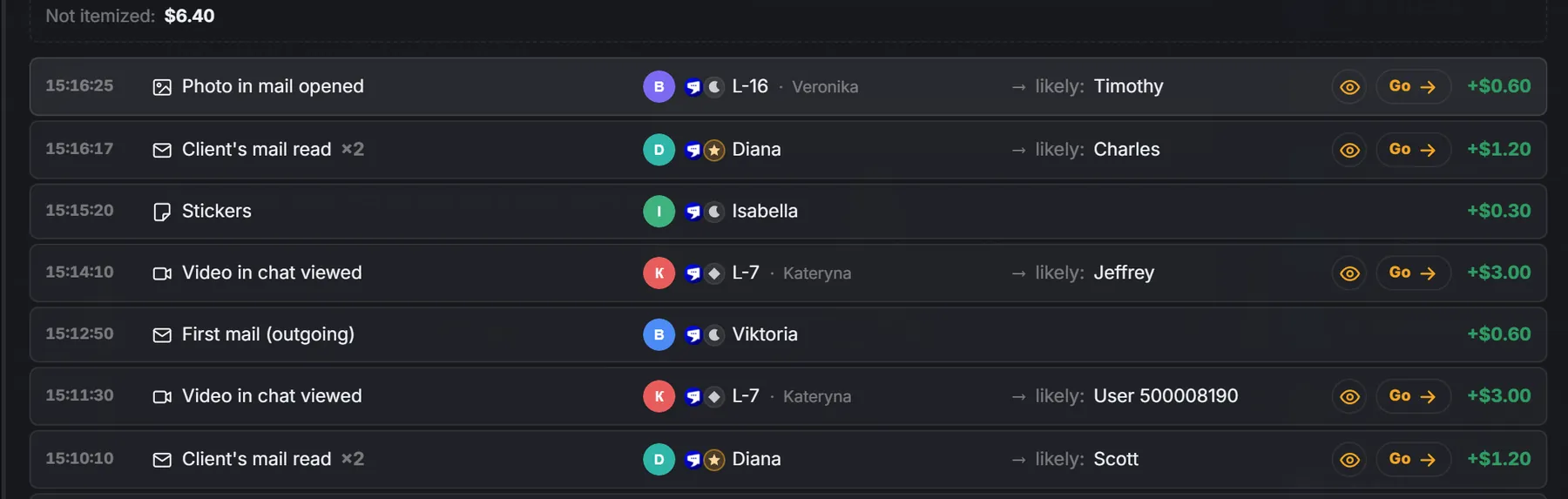
how Dashboard solves itEvery credit pops up under the balance: the amount, what it’s for, which profile. One click opens “Shift history”, where each credit is logged as a row. The feed matches “Earnings”, and a manager’s manual edits are marked “set manually”.
- +$1.80Mail (outgoing)profile Vika
- +$0.60Photo received in chatprofile Lida
- +$0.12Chat messageprofile Oksana
- +$1.82Giftprofile Natasha
- +$3.00Video in mail viewedprofile Diana
Sample feed · demo data

how Dashboard solves itA shift is run by a team, not one person: while someone is on pause, their profiles don’t go unanswered, and the manager sees who has been gone too long and sends a task straight into the shift.
- 10:30:02Team member 03 on pauseProfiles passed to the best available stand-in
- 10:34:40Team member 05 started a shiftTook over the paused colleague’s profiles
- 12:10:15Team member 07 gone too longCard for the manager · short absences don’t count
- 12:11:40Task sent to the shiftLands at the top of “New messages”
- 15:00:00Shift closedExactly when the group’s hours end
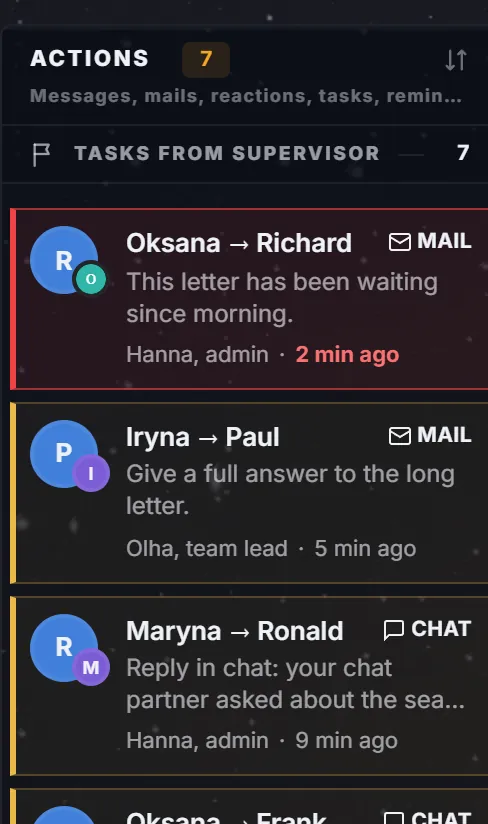
how Dashboard solves itConversations marked Premium and VIP+ sit above the rest in the Actions column, with a stricter reply deadline. Manager tasks come first. A VIP+ conversation stands out with a red frame, and the shift report lists Premium and VIP+ on a separate line.
- 10:12:30Task from supervisorGoes first in the Actions column
- 10:14:03A Premium chat partner writesProfile Vika · higher in the column, stricter reply deadline
- 10:16:40A VIP+ chat partner writesProfile Lida · conversation in a red frame
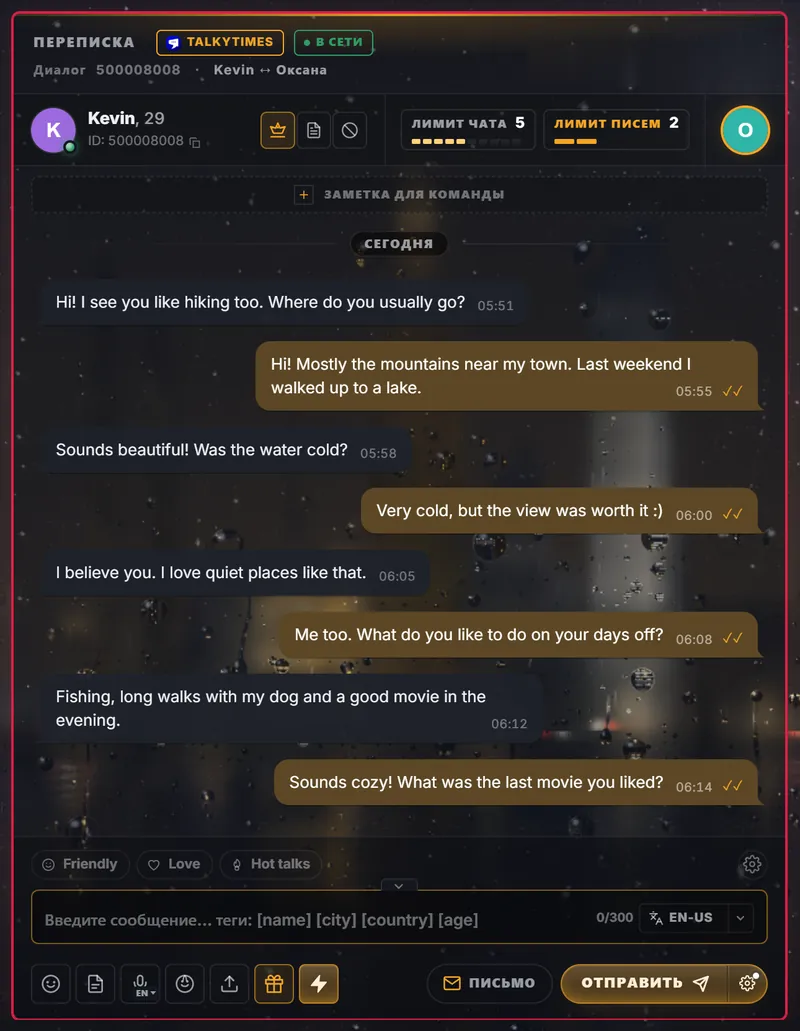
how Dashboard solves itEverything the shift should pay attention to is gathered in a single Actions column and sorted into sections, from letters and reactions to chat requests from the platform.
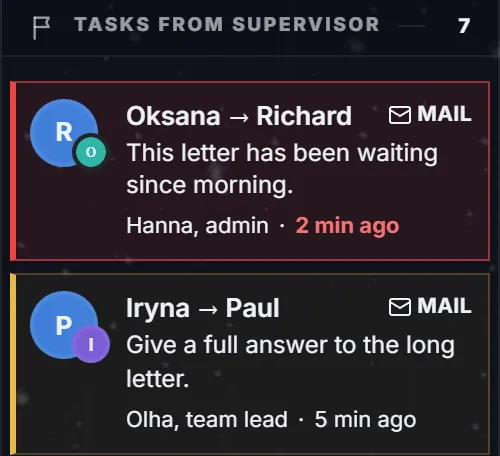
They go first in the column. The section shows while there are tasks.
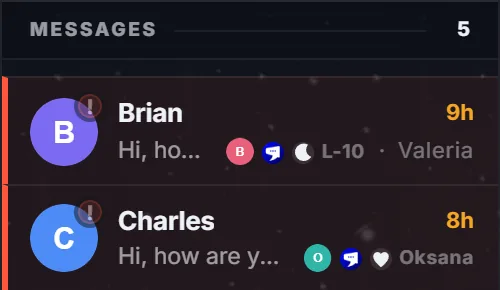
New incoming chats. If a chat partner both liked and wrote, you see the message, not a “Reaction”.
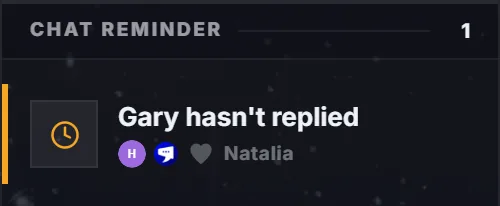
The chat partner hasn’t replied after the team member’s answer: the card is a reminder about the dialog.
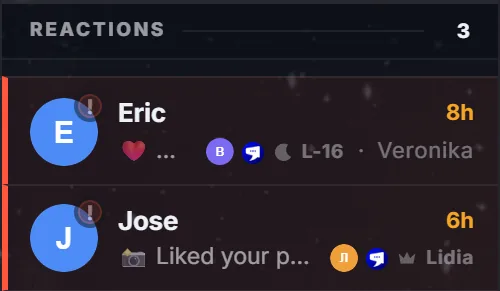
Likes, winks and photo likes, in a section of their own.
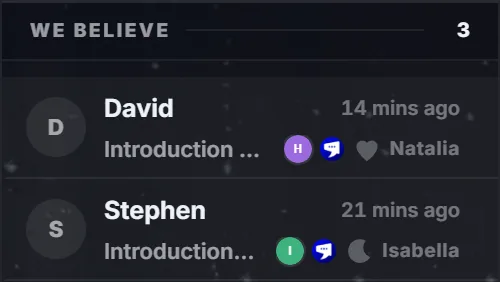
Requests to get acquainted or continue a dialog on TalkyTimes. Once you answer, the card leaves the column right away, and there’s no second answer. Some agencies have this section on a separate tab.
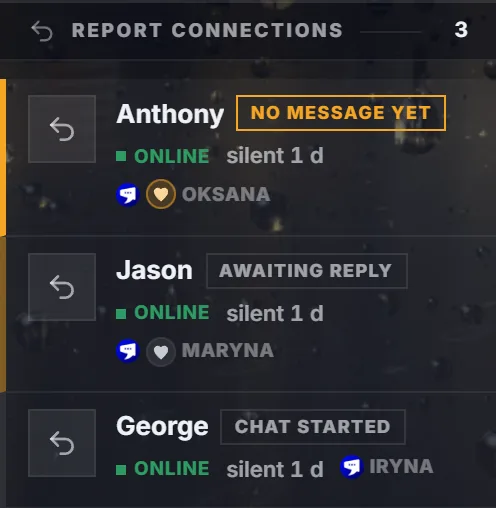
With Tableau connected: different cases from the platform report for the week, from people nobody has written to yet to conversations that have just started and people waiting for a reply. The card stays while the chat partner is online and goes away as soon as a team member writes to them. The report updates once a day.
Frame 08 Actions column · demo data
Dashboard checks outgoing messages before they’re sent, and managers see which team member sent what. That makes it easier for an agency to follow platform rules and see who breaks them.
Manager log · demo
My site: example.com
How was your day?
Message me: t.me/example
Find me: 𝚎𝚡𝚊𝚖𝚙𝚕𝚎.𝚌𝚘𝚖
My number is +1 555 010 0199
- 01
Links and contacts
Before sending, Dashboard looks for links, domains, email addresses, @handles, t.me and phone numbers in the text — including ones disguised with a different font, spaces or look-alike characters. A message like that isn’t sent.
- 02
Group stop words and repeats
A manager sets the group’s list of banned words. A message containing one isn’t sent, and the team member sees which word blocked it. Dashboard warns before the same text goes to the same chat partner again.
- 03
Meeting and travel promises
Dashboard checks outgoing messages for misleading promises of meetings or travel. A message that looks like one is either not sent, or the team member gets a warning with the reason.
- 04
The log and who sent it
Messages the check stopped are recorded in the team member’s log. The agency’s managers can see the log. Clicking a message shows a manager which team member sent it, so they can review the case.
- 05
Blocking — through a report to the platform
To block a chat partner, a team member files a report with the platform: the reason, a description of what happened, a screenshot.
Checks help spot a possible violation before sending, but they’re no guarantee: they don’t catch everything and are sometimes unavailable. The agency is responsible for following platform rules.
Dashboard And more
Small things that make a shift run smoother
- Letters and media marked “viewed”
- Voice notes: favorites and a “listened” mark
- Who viewed posts and exclusives
- Notes for the team
- Voice input for messages and letters
- Three interface languages
- Works on phone and tablet
- Bug reports right from the interface
See Dashboard on your own profiles
14 days freeThe city behind the glass and the rain on this site are Dashboard’s Obsidian design. There are two more: Cosmic, with a live sky, and Messenger. Switch the time of day in the demo below, and the city behind this site’s glass switches with it. In Cosmic itself, the sky follows the team member’s clock.
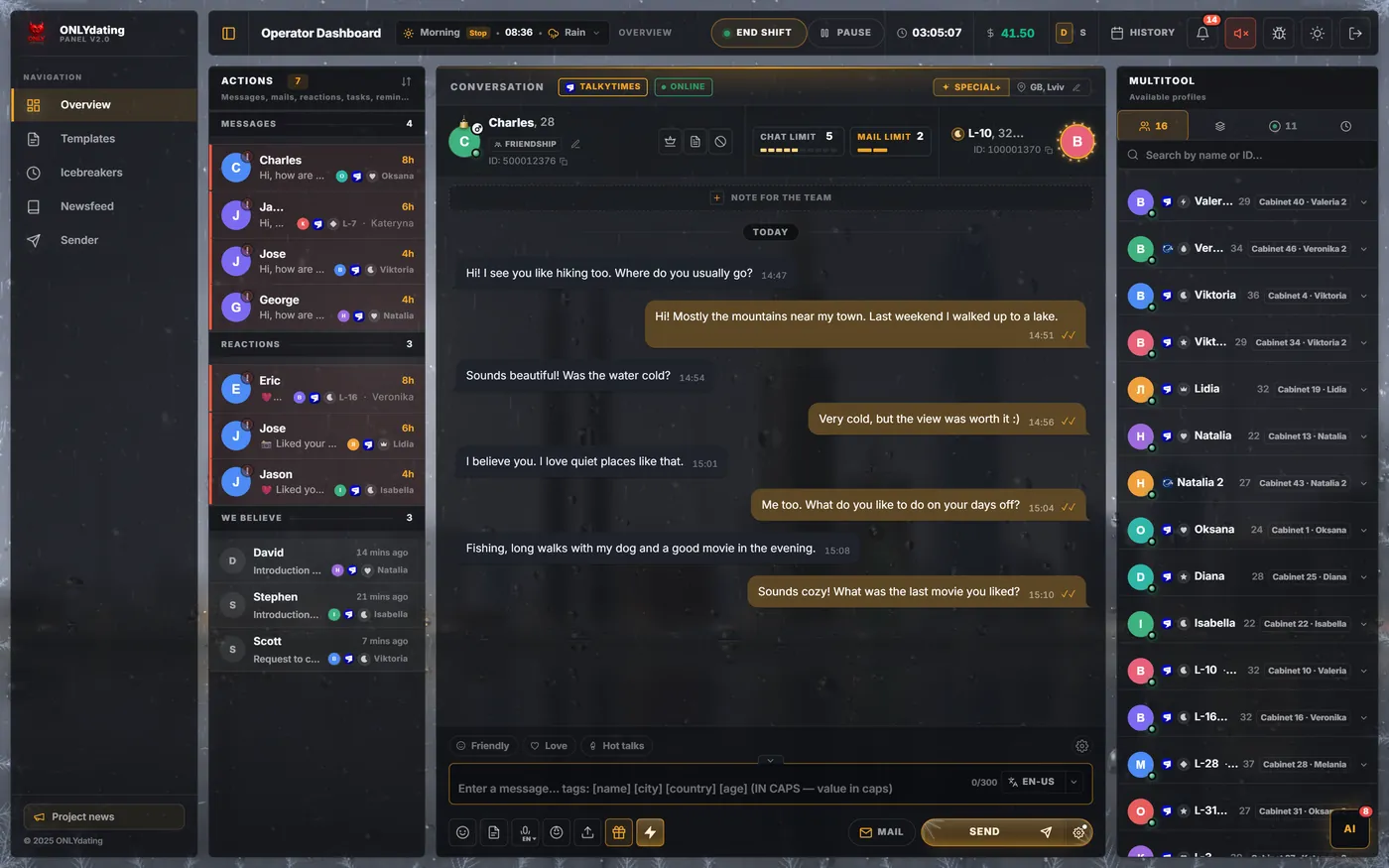
Pick one of three designs before you even sign in. The choice is saved and opens right after login.
- “Atmosphere”: time of day, weather, glass, rain sound
- Cosmic: a live sky on the team member’s local time
- Light show for shift events
- Lite mode for low-end PCs
- Messenger — light and dark themes
See Obsidian on your own profiles
14 days free